Does Showing Seconds in the System Tray Actually Use More Power?
Curious if showing seconds in the Windows system tray uses more power? So are we.

Tucked away in the Windows Settings menu, under taskbar clock options, there’s a surprisingly bold little checkbox:

We're no strangers to poking around the weird settings of an OS, but we'll admit: we haven’t paid much attention to this one because the setting is off by default and why would we want to decrease our battery life? That is, until a Reddit post pointed it out, and it would keep us at night if we did not at least try our best to find an answer. Admittedly, after a little testing, it is not a very conclusive answer but it is an interesting one nonetheless.
The Claim
The warning suggests that updating the taskbar clock every second, instead of once per minute, could increase power usage. This is possibly due to more frequent CPU wakeups or additional rendering activity. It sounds reasonable at first, but as with most operating system questions, the real explanation might be more complicated. The screen is being refreshed dozens or even hundreds of times per second anyway. So why would this one label update make a difference?
It might be that redrawing the clock every second will prevent the CPU from entering lower power states as often, or that it triggers more frequent compositor (the thing that takes all graphical elements and combines it into one image) updates. These ideas sound plausible, but they are still just educated guesses so we just tested them!
How We Tested
Test 1: Idle Desktop
We ran battery drain tests on three laptops, comparing results with the “show seconds” setting enabled and disabled. Each laptop was tested against itself, with all relevant settings kept consistent between runs to ensure a fair comparison.
Test 2: Video Playback
Added 2025-07-15
For the second round of testing, we kept the same three laptops and overall methodology, but made a few additional changes to reduce background activity and improve consistency. This time, we wanted to simulate a more active usage scenario, so we ran the systems with a windowed full-screen video playing (so we can still see the clock). The “show seconds” setting was again toggled on and off for each device, and battery life was measured from full charge to shutdown.
For readers interested in the detailed system configurations, test conditions, and power settings for both tests, we’ve included them in the appendix.
The Results
Run 1
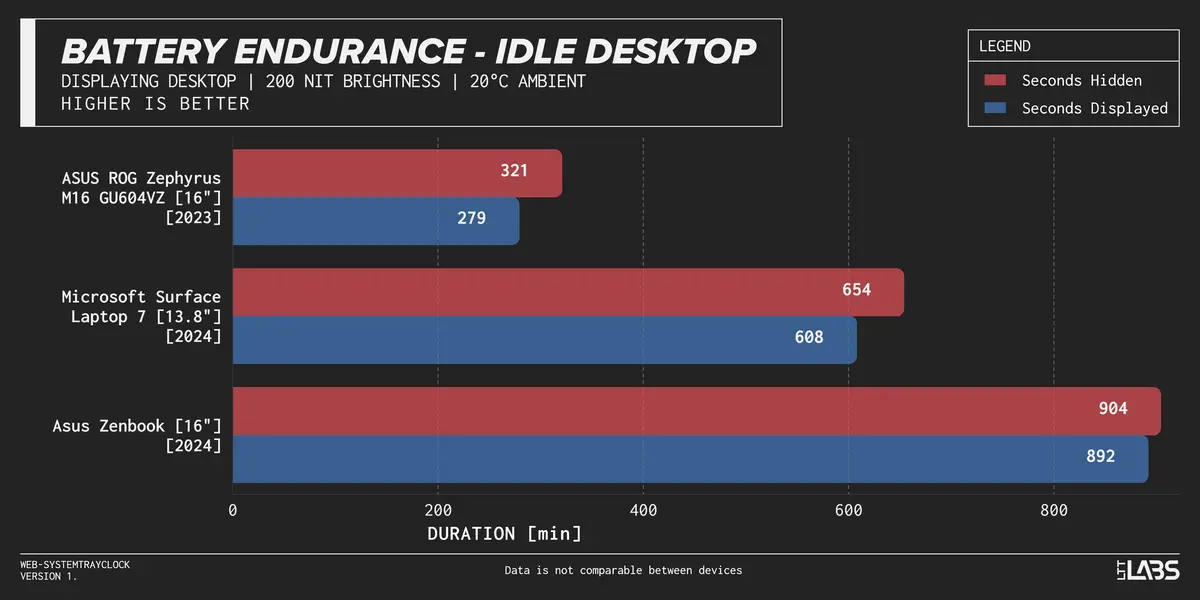
Test 1: Idle Desktop
We selected a mix of laptops to represent different hardware configurations and usage scenarios.
- The ASUS ROG Zephyrus M16 GU604VZ (2023), a high-performance gaming laptop with a dedicated GPU, showed the largest drop. Battery life fell from 321 minutes (5 hours, 21 minutes) to 279 minutes (4 hours, 39 minutes), a difference of 42 minutes or about 13%.
- The Microsoft Surface Laptop 7 (2024), based on ARM architecture and focused on efficiency, dropped from 904 minutes (15 hours, 4 minutes) to 892 minutes (14 hours, 52 minutes), a 12-minute or about 1.4% reduction.
- The Asus Zenbook 16 (2024), an x86 ultrabook with integrated graphics, dropped from 654 minutes (10 hours, 54 minutes) to 608 minutes (10 hours, 8 minutes), a 46-minute or roughly 7% reduction.
Test 2: Video Playback
Added 2025-07-15
For the second round, we added a video playback workload to simulate light real-world usage and adjusted system settings for greater consistency (details in the appendix).
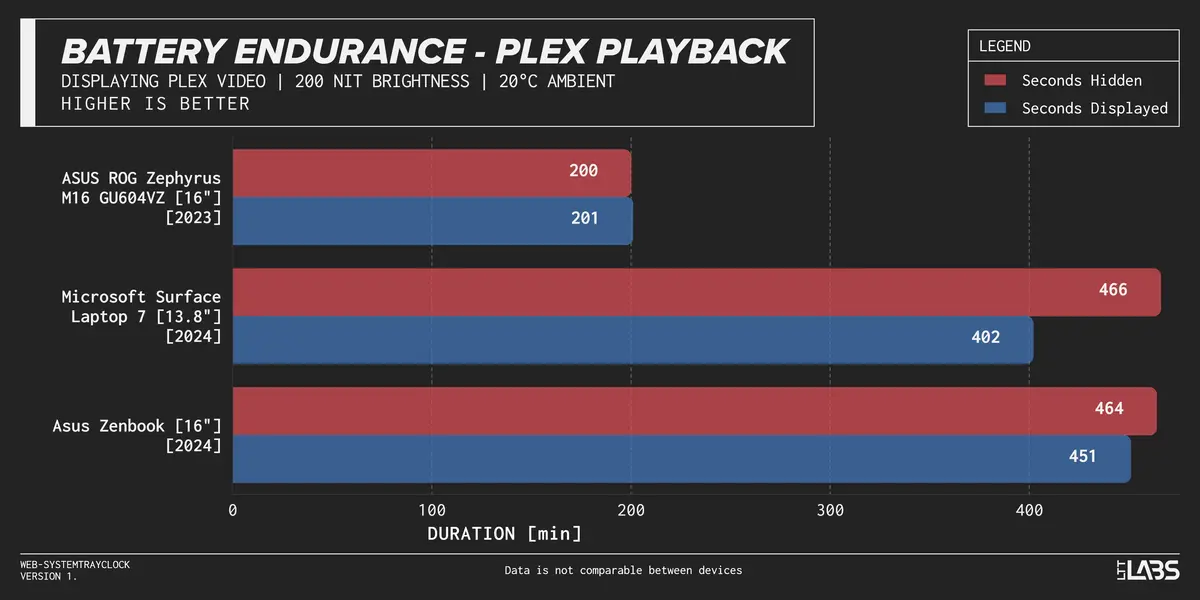
- On the ASUS ROG Zephyrus M16 GU604VZ, battery life stayed nearly identical. With seconds hidden, it lasted 200 minutes (3 hours, 20 minutes), and with seconds shown, it lasted 201 minutes (3 hours, 21 minutes), a difference of +1 minute or +0.5%.
- The Microsoft Surface Laptop 7 showed the largest swing, falling from 466 minutes (7 hours, 46 minutes) to 402 minutes (6 hours, 42 minutes), a 64-minute or a 15.9% difference.
- The Asus Zenbook 16 dropped slightly from 464 minutes (7 hours, 44 minutes) to 451 minutes (7 hours, 31 minutes), a 13-minute or a 2.9% reduction.
Run 2
Added 2025-08-08
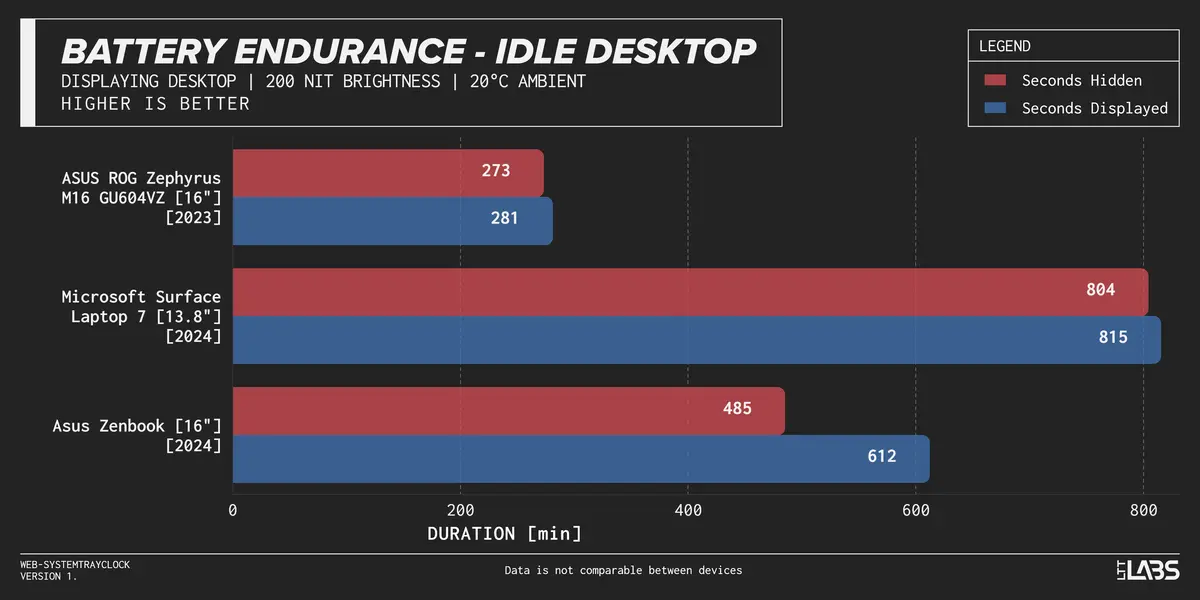
For the second run, we repeated the idle desktop and the video playback test under the same conditions as before to see if our results were consistent.
Test 1: Idle Desktop
- ASUS ROG Zephyrus M16 GU604VZ (2023) went from 273 minutes (4 hours, 33 minutes) to 281 minutes (4 hours, 41 minutes), an increase of 8 minutes or about 2.85%.
- Microsoft Surface Laptop 7 (2024) went from 804 minutes (13 hours, 24 minutes) to 815 minutes (13 hours, 35 minutes), an increase of 11 minutes or about 1.35%.
- Asus Zenbook 16 (2024) went from 485 minutes (8 hours, 5 minutes) to 612 minutes (10 hours, 12 minutes), an increase of 127 minutes or about 20.75%.
Test 2: Video Playback (Plex, Fullscreen)
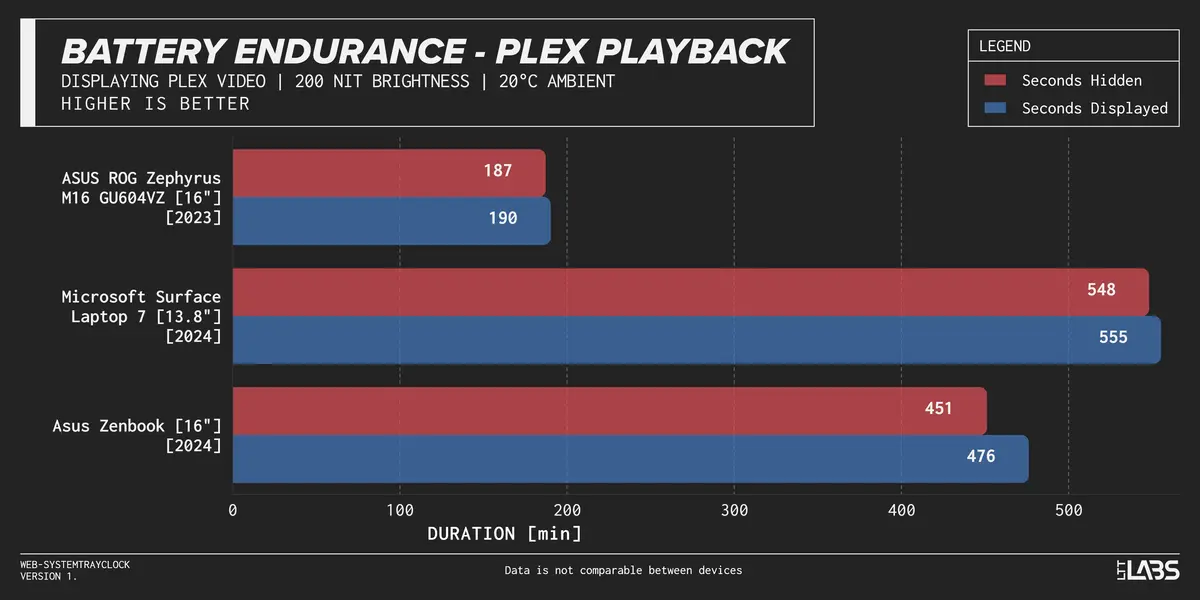
- ASUS ROG Zephyrus M16 GU604VZ (2023) went from 187 minutes (3 hours, 7 minutes) to 190 minutes (3 hours, 10 minutes), an increase of 3 minutes or about 1.58%.
- Microsoft Surface Laptop 7 (2024) went from 548 minutes (9 hours, 8 minutes) to 555 minutes (9 hours, 15 minutes), an increase of 7 minutes or about 1.26%.
- Asus Zenbook 16 (2024) went from 451 minutes (7 hours, 31 minutes) to 476 minutes (7 hours, 56 minutes), an increase of 25 minutes or about 5.25%.
So… Is It Real?
Edited 2025-07-15
Well, it’s complicated. Across all three machines for the first test, enabling the setting led to shorter battery life barring one small deviation (which could be attributed to variance). For the second test, the results were a little more mixed. The Zenbook and Zephyrus behaved similarly to the idle test, with only minor differences. The Surface Laptop, however, showed a much larger drop than expected. This set of results provides a useful cross-section of how the setting might behave across different types of systems, from high-performance gaming laptops to modern low-power ARM devices.
Of course, we are talking about relatively small shifts here. Real-world battery life is unpredictable and influenced by a long list of variables. We tried to eliminate as many of those as we could, but there are still some that we just can’t determine let alone control. Ambient temperature, battery wear, and background processes can all affect results. That said, it’s not exactly ideal to see a 30 to 45 minute swing between two otherwise normal test runs.
Others have looked into this too, with both Neowin and a Windows dev blog noting that showing seconds can slightly increase power usage. Some Reddit users on the same thread also pointed out that while the system is already doing plenty in the background, even small updates like this might prevent deeper power-saving states.
In percentage terms, the drops weren’t massive. For most people, it probably won’t make or break your day. But if you’re on a long flight, running low on battery, or trying to squeeze out every last bit of endurance, it’s not entirely nothing either.
We will be running both the tests again on all three laptops to account for variance. Once those results are in, we’ll update the relevant sections with the new data.
There’s still more work to be done before drawing any real conclusions. But if you’ve ever wondered whether displaying seconds in your system tray has a power cost: our early results suggest it just might.
Update
Added 2025-08-08
After publishing the original results, we ran both tests again on all three laptops to check for variance. The new results were far more mixed, with all systems showing increases in battery life when seconds were enabled. This run doesn’t support our initial observation that the setting might slightly decrease battery life.
These laptops were also set up more like a typical user’s system rather than our fully locked-down battery testing configuration, which means there’s naturally more room for variance. Small, hard-to-control factors like differences in Wi-Fi behavior, ambient temperature, or background processes can explain swings of this magnitude. At this scale, the effect is so inconsistent that it’s unlikely to be noticeable in everyday use.
All that work, and we ended up with possibly the most ambiguous results ever.
Appendix: Test Configuration Details
To ensure consistency across all test runs, we applied the following setup and environmental controls for each laptop unless otherwise noted.
Test 1: Idle Desktop
General Conditions
- Brightness: Fixed at 200 nits (measured with external probe)
- Room Temperature: Maintained at ~20°C
- Power Source: Tests run from full charge (100%) to shutdown (0%) on battery
- Test Type: Idle desktop only (no applications or media playback, unless otherwise stated)
- OS: Windows 11
System Settings
- Startup apps: All non-essential apps disabled
- Variable Refresh Rate (VRR): Off
- Refresh Rate: Native/default refresh rate used for each panel
- ASUS ROG Zephyrus M16 GU604VZ (2023): 240 Hz
- Asus Zenbook 16 (2024): 120 Hz
- Microsoft Surface Laptop 7 (2024): 120 Hz
- Bluetooth and Wi-Fi: Enabled
- Power Mode: Windows "Balanced" power plan
- Sleep Settings: Screen and system sleep disabled
Test 2: Video Playback
Added 2025-07-15
General Conditions
- Brightness: Fixed at 200 nits (measured with external probe)
- Room Temperature: Maintained at ~20°C
- Power Source: Tests run from full charge (100%) to shutdown (0%) on battery
- Test type: Windowed fullscreen video playback (Plex)
- OS: Windows 11 (same build as Test 1)
System Settings
- Startup apps: Disabled
- Variable Refresh Rate (VRR): Off
- Refresh rate: Set to 60 Hz on all systems
- Bluetooth and Wi-Fi: Disabled
- Windows Defender: Disabled
- Drive indexing: Disabled (Windows feature that scans files in the background to speed up search results; can cause periodic disk and CPU activity)
- Power mode: Windows "Balanced" power plan
- Sleep settings: Screen and system sleep disabled
- All other visual and power settings left at default unless explicitly stated above
Other Notes
- The ASUS ROG Zephyrus M16 was not set up using our standard internal configurations, though key settings were manually aligned with the others for comparability.
- All taskbar animation effects, live tiles, and optional visual elements were left at default Windows values.
- Systems were allowed to idle after boot for 10 minutes before testing to stabilize background processes.