Nintendo Switch 2 Dock USB-C Compatibility
A collection of the additional USB-C PD test results we collected for the LTT Switch 2 Dock video.
If you’ve come here to learn everything there is to know about USB Type-C(USB-C), you’re in the wrong place! This won't cover everything there is to know about USB-C Power Delivery(PD) as there are thousands of pages of documentation, but hopefully this can at least help you determine what you have to Google in order to learn more.
This is a companion piece to a recently published LTT video about the Nintendo Switch 2 Dock compatibility and the purpose of this article is to present some data and information that didn't quite make it into the video. I highly recommend watching that video, it will provide some good context on the information here and may even be entertaining. Otherwise, you can leave questions or comments on the Linus Tech Tips Forum, where we’ve made a post for this article.
USB-C PD Basics
Ignoring the full legal name of "Universal Serial Bus Type C - Power Delivery", it is commonly referred to as "USB-C PD" and specifies the protocol for negotiation and delivery of up to 240 W. It defines the physical requirements of the connectors/cables as well as how the connected devices must communicate in order to negotiate the direction and magnitude of power.(voltage and current limits)
While the standard USB power limit is 15 W(3 amps at 5 volts), PD allows for the source(device supplying power) to advertise its power supplying capabilities to the sink(device drawing power) with voltages up to 20 V(or 48 V with Extended Power Range(EPR)) and 5 A. EPR even supports up to 240 W! Plenty of power for any device you'd reasonably power with USB-C.
USB-C PD Negotiation
While there is a standard for the messages to be sent back and forth between devices, the annoying part is that in reality there can be many exceptions to these rules. There can be poor connections, missed packets, interruptions, or even devices that just behave badly and don't support the entire specification. This means that negotiations vary slightly in the messages, timing, and final result. Sometimes they will even go through the entire negotiation and have power delivery set up just for one of the devices decides to reset the connection and do it all again.
For the purpose of illustration, the example below is simplified and shows the minimum steps required in the process. USB-C PD traffic(like many communication standards) often looks like a conversation between devices.
Example Negotiation
Source:
"Hi, I can support these power profiles." - SOURCE_CAPABILITIES MessageSink:
"Great! Can I have 20 V and 5 A (100 W)." - REQUEST MessageSource:
"Sure!" - ACCEPT MessageSource:
"I’m ready to supply what you requested!" - PS_RDY Message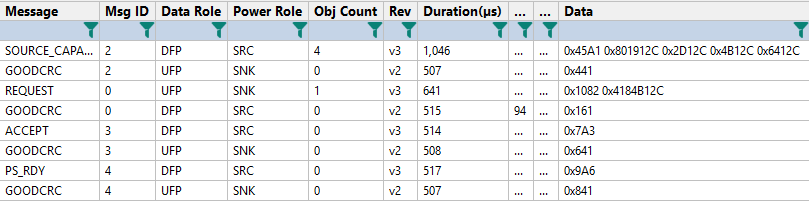
Negotiation Explanation
SOURCE_CAPABILITIES - Source Capabilities
This is a message from the source to 'advertise' the power modes that it is capable of supplying.
- The capabilities are communicated as a list of options with different fixed voltages, current limits, and supported features. The most interesting of these is the - optional - Programmable Power Supply(PPS) mode allowing the sink device to micromanage the delivered voltage and current to optimize power conversion and delivery.
- This can be broadcast numerous times by the source, or the sink can request it with
GET_SOURCE_CAP. - There is an equivalent
GET_SINK_CAPandSINK_CAPABILITIESto request and communicate a device's ability to pull power.
REQUEST - Request
The sink will respond with a selection of one of the modes.
- The sink responds with a number corresponding to the index of the source mode from the list that the source advertised.
- The sink can send another
REQUESTmessage at any time(with caveats) to request a different source mode. This can happen when the device turns on or whenever it would like to charge faster/slower.
ACCEPT - Accept
The source will accept the request.
- The source must decide if it can comply. It may reject for reasons like being too hot, already delivering power to many other devices, or any variety of things. It is completely up to the source and its internal logic.
- If the firmware is implemented properly, then the source can also respond with a
REJECTmessage.
PS_RDY - Power Supply Ready
The source notifies the sink that it is ready for it to begin drawing power at the requested level.
- The source must change the voltage and ensure the power supply is in a state to allow the power draw. Then it will send this message.
GOODCRC - Acknowledge
Bonus fifth message. These are actually sent by the receiving device in response to any received message. It is a common communication feature known as an "acknowledge" to let the sender know that the message has been successfully received.
- If you've received this message, please comment
GOODCRCon the LTT video.
Vendor Defined Messages(VDM) - VENDOR_DEFINED
Alongside the standard negotiation of power delivery, there is also negotiation to be had about data direction, format, and many other things. Vendor Defined Messages(VDM) are typically how this is done. These are used for both standard formats like DisplayPort or Thunderbolt, but also for proprietary modes if a manufacturer wanted to use a USB-C cable for whatever language or format they're using.
The distinction between 'good' and 'bad' use of VDM is whether or not the designer/user of the VDM publishes/registers the protocol and makes it available/compatible with other manufacturers or users. The Alternate Mode(Alt Mode) for DisplayPort is negotiated over VDM and is a great boon to many users, but Nintendo appears to be quite discourteous with their use of VDM.
USB-C PD Tests
Enough of that, let's get to the data dump. Below are eight of the tests that I conducted with a variety of devices and connections. The purpose of this isn't to be an interesting read, but potentially someone will happen upon this article and find the specific information they need. If you would like to view the projects yourself in the Infineon EZ-PD Protocol Analyzer software, or as .csv files, then they are available here.
Devices
- Nintendo Switch 2
- Nintendo Switch 2 Dock - Packaged with Nintendo Switch 2
- Nintendo Switch 2 AC Adapter - Packaged with Nintendo Switch 2
- UGREEN 100W AC Adapter(CD254)
- Infineon CY4500(we now have the Infineon CY4500-EPR as well)
- Quarch AC Power Analysis Module
- Asus ProArt PA329CV 32"
- ANTANK S3 MAX TV Dock Station(also just found this dock which seems popular)
- UGREEN and unlabeled USB-C Extensions
Tests
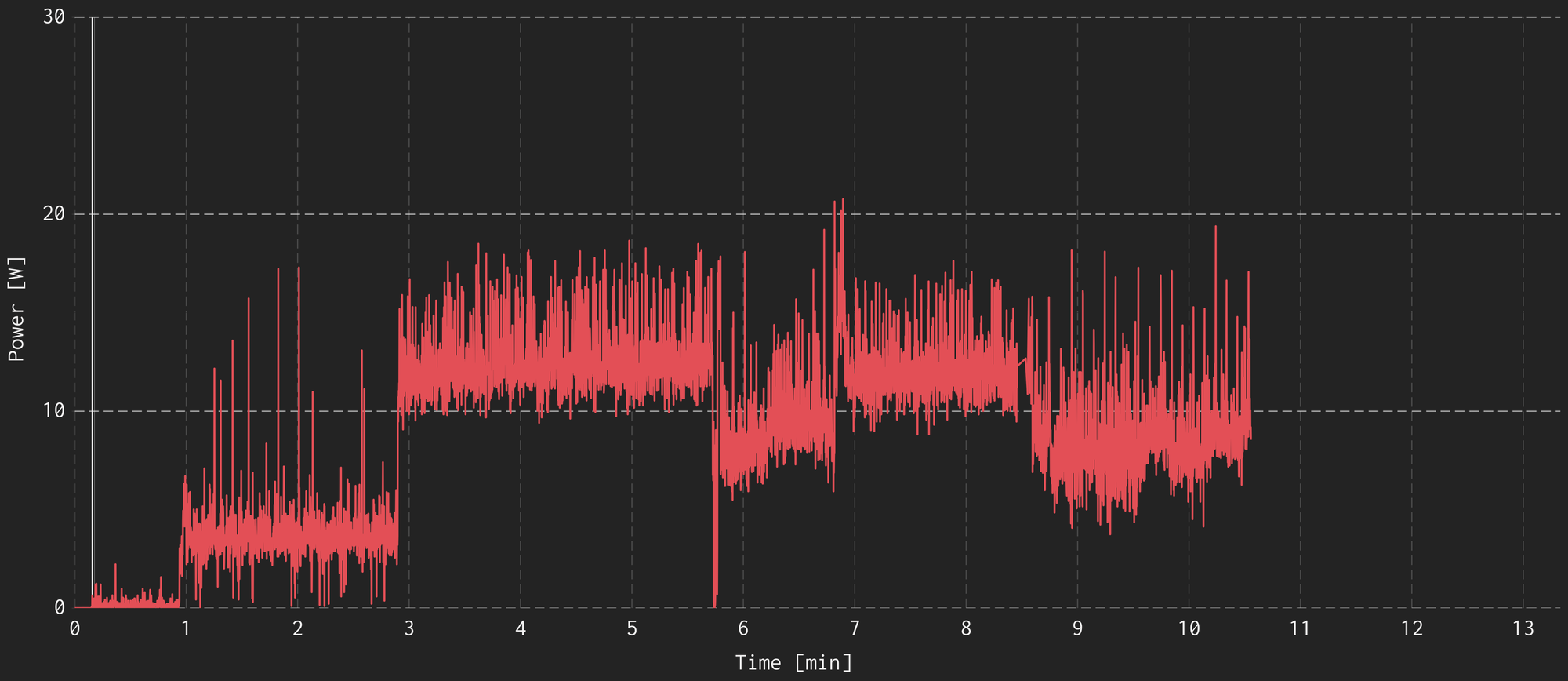
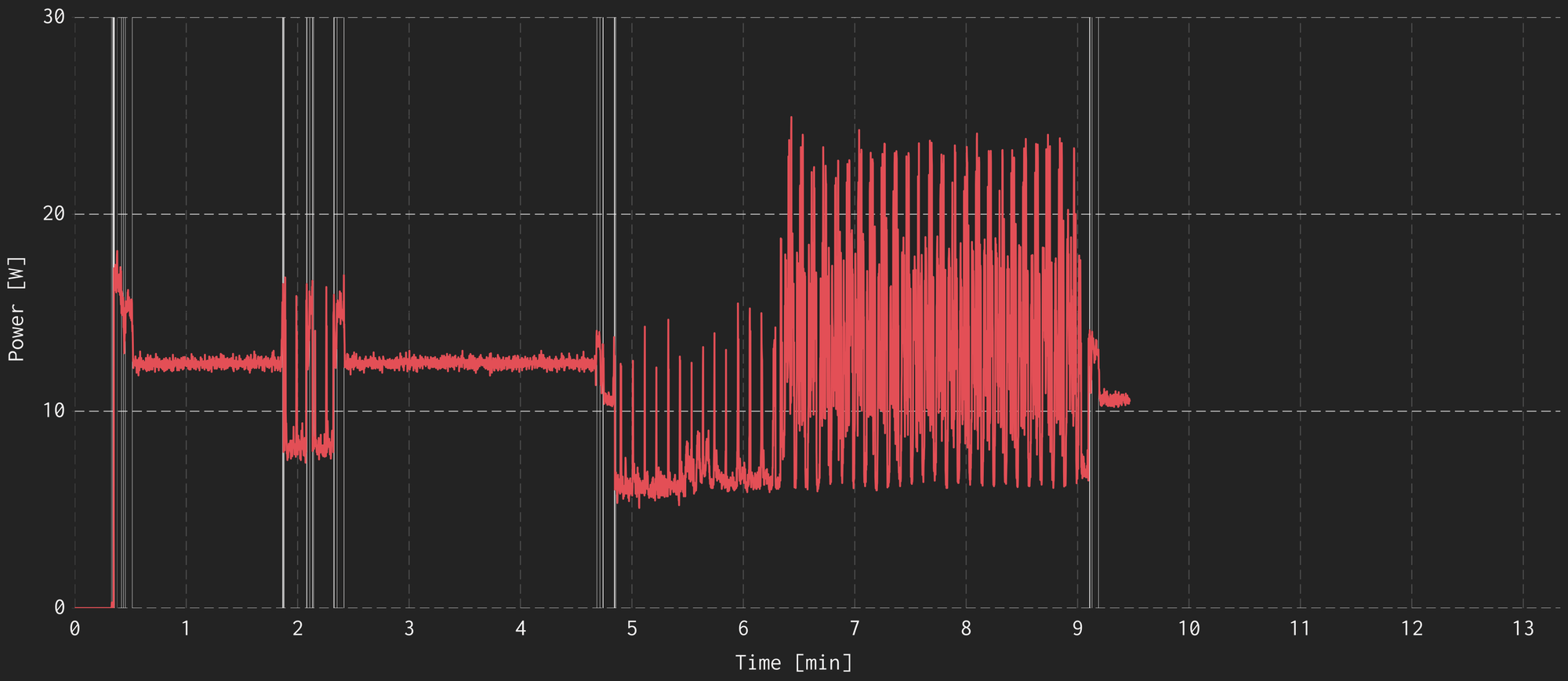
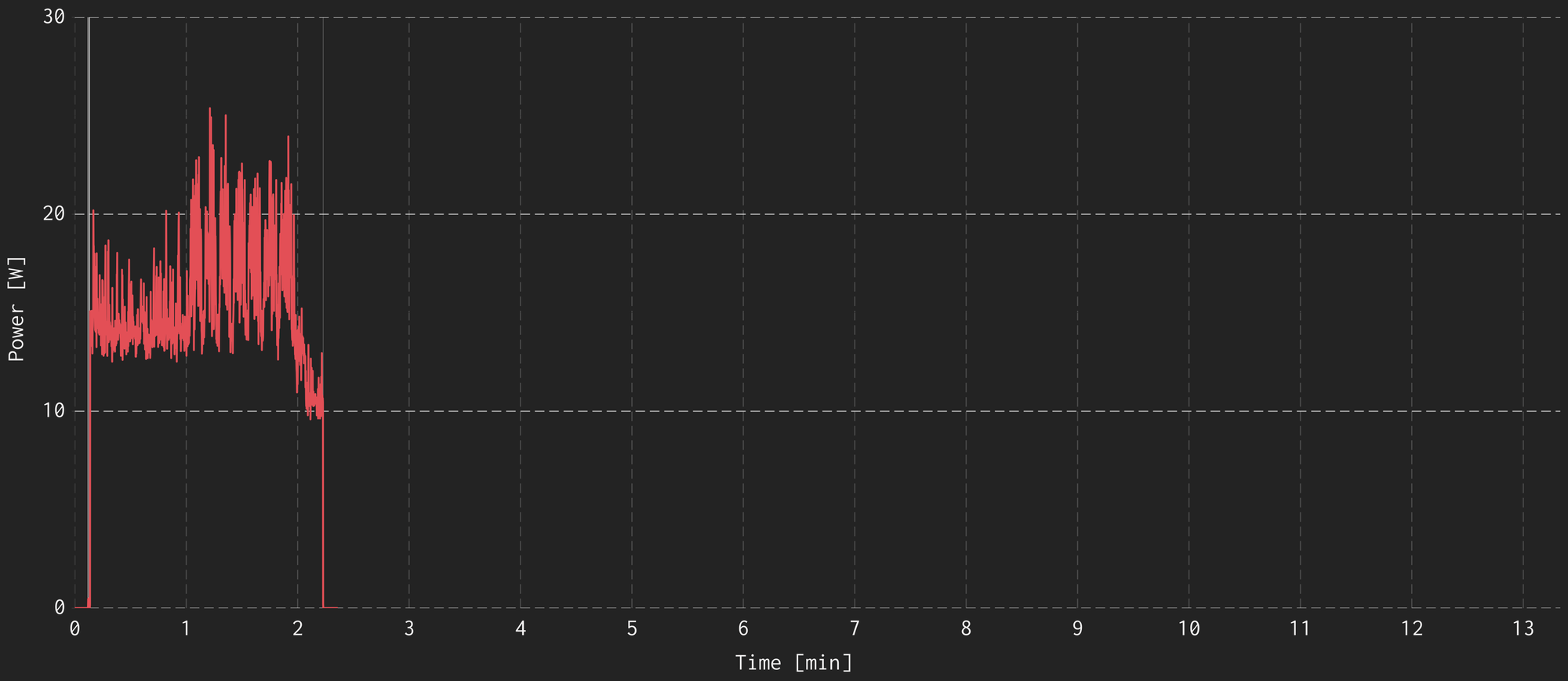
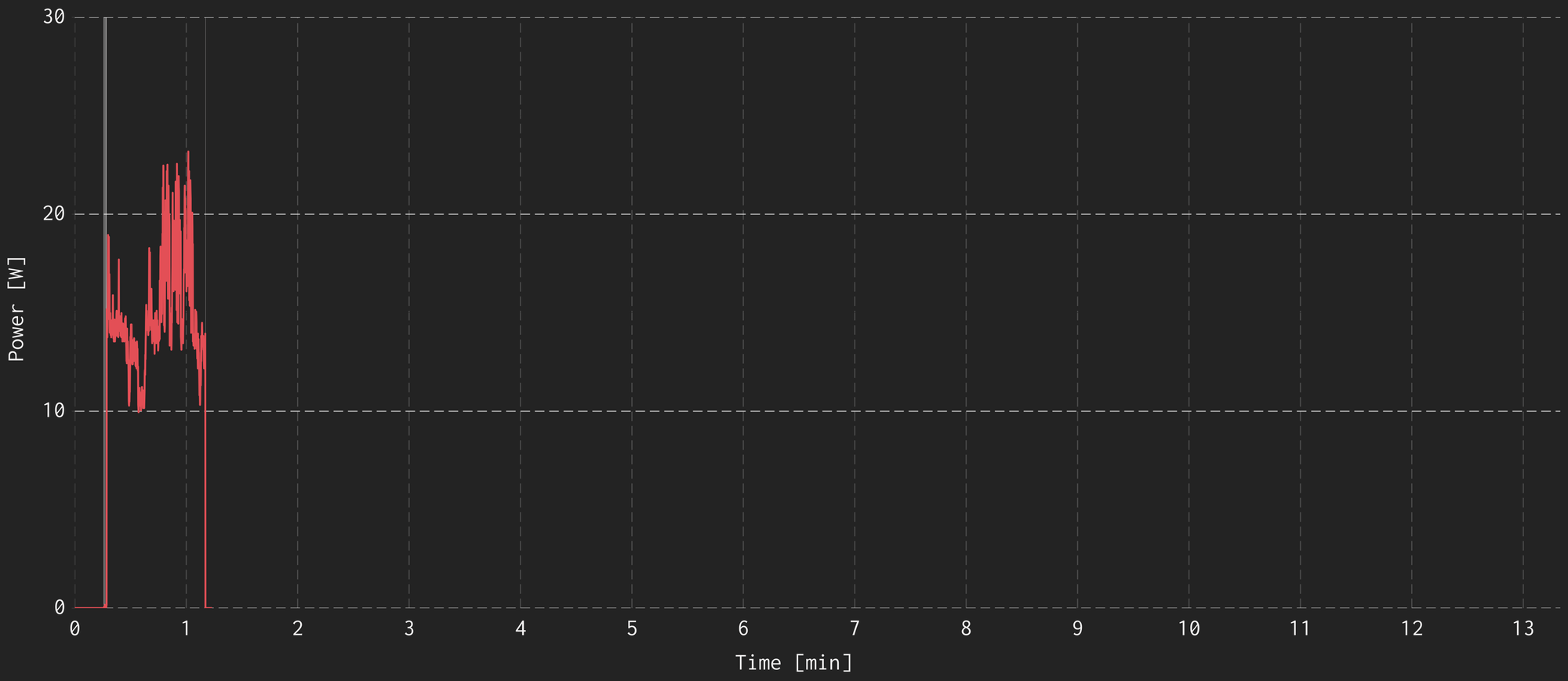
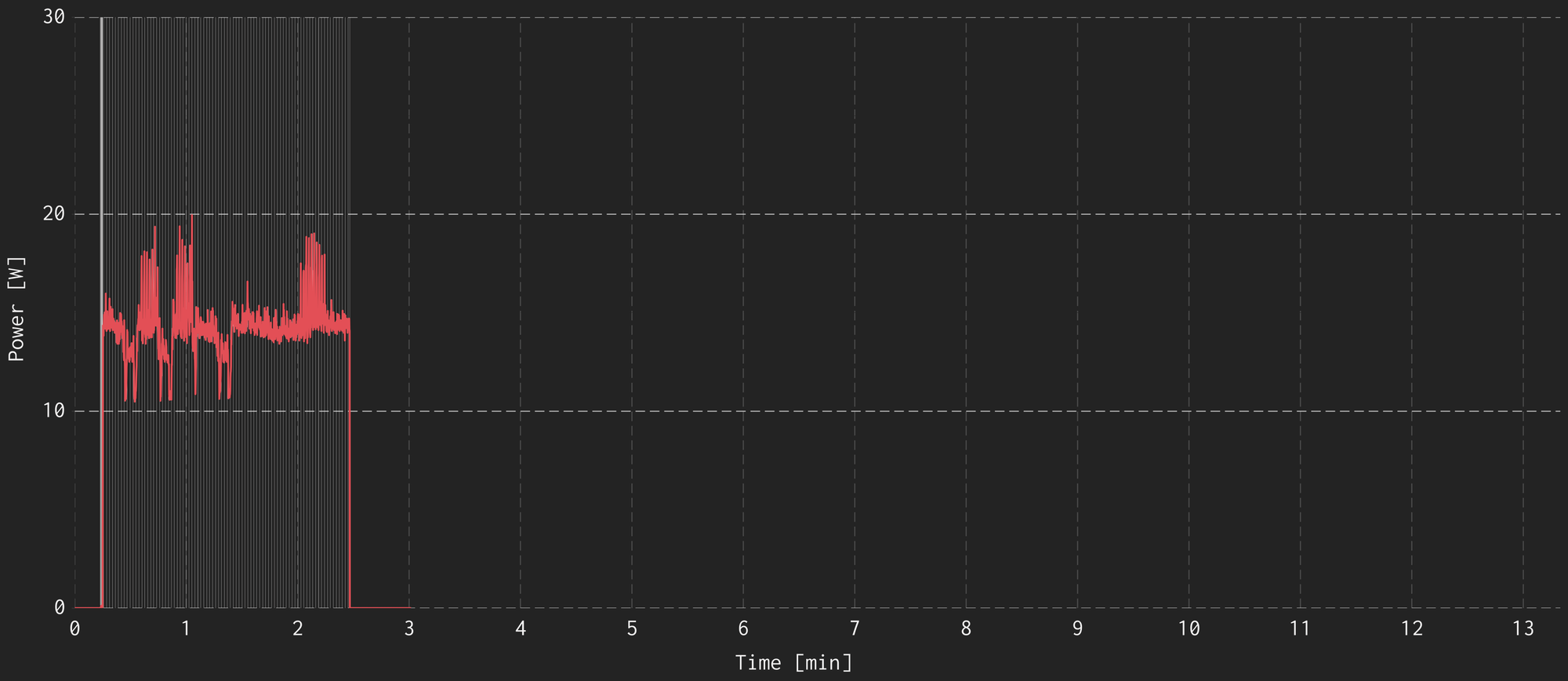
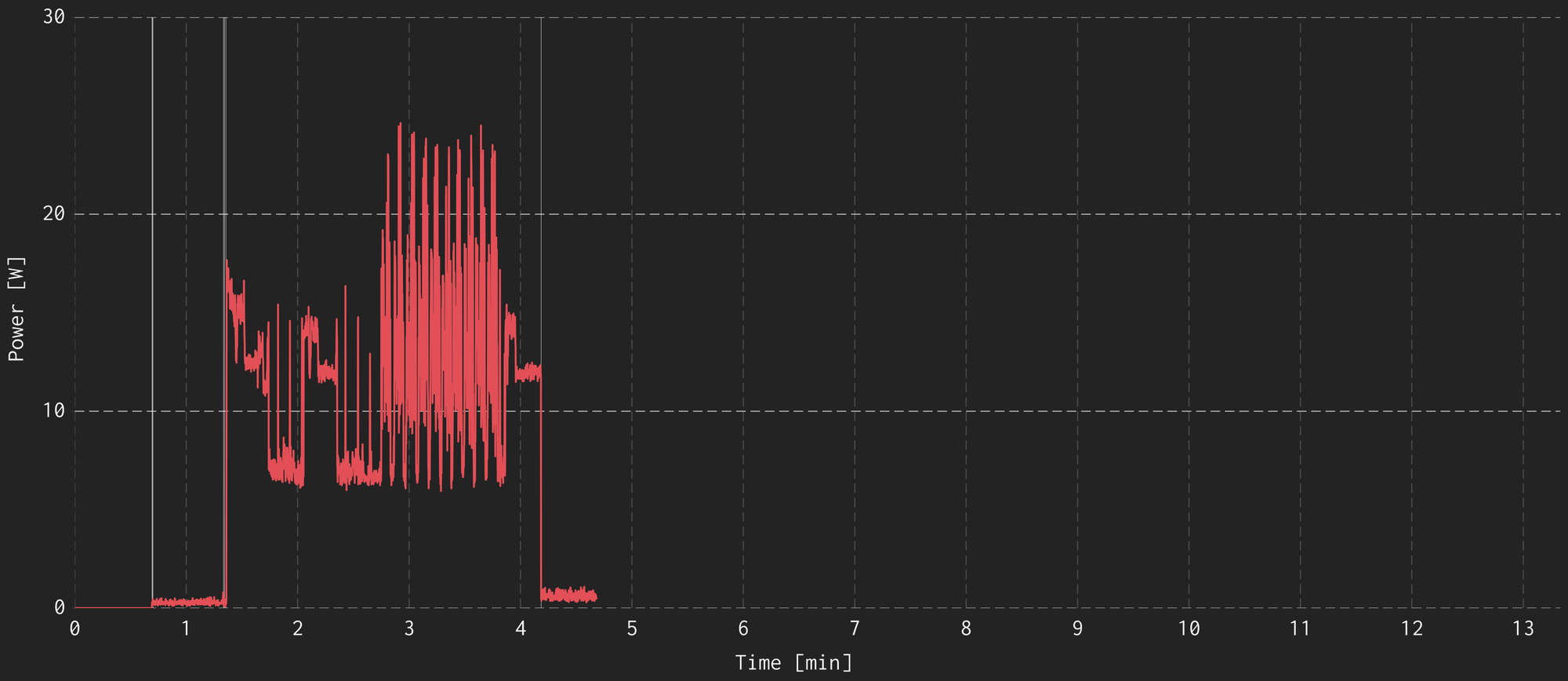
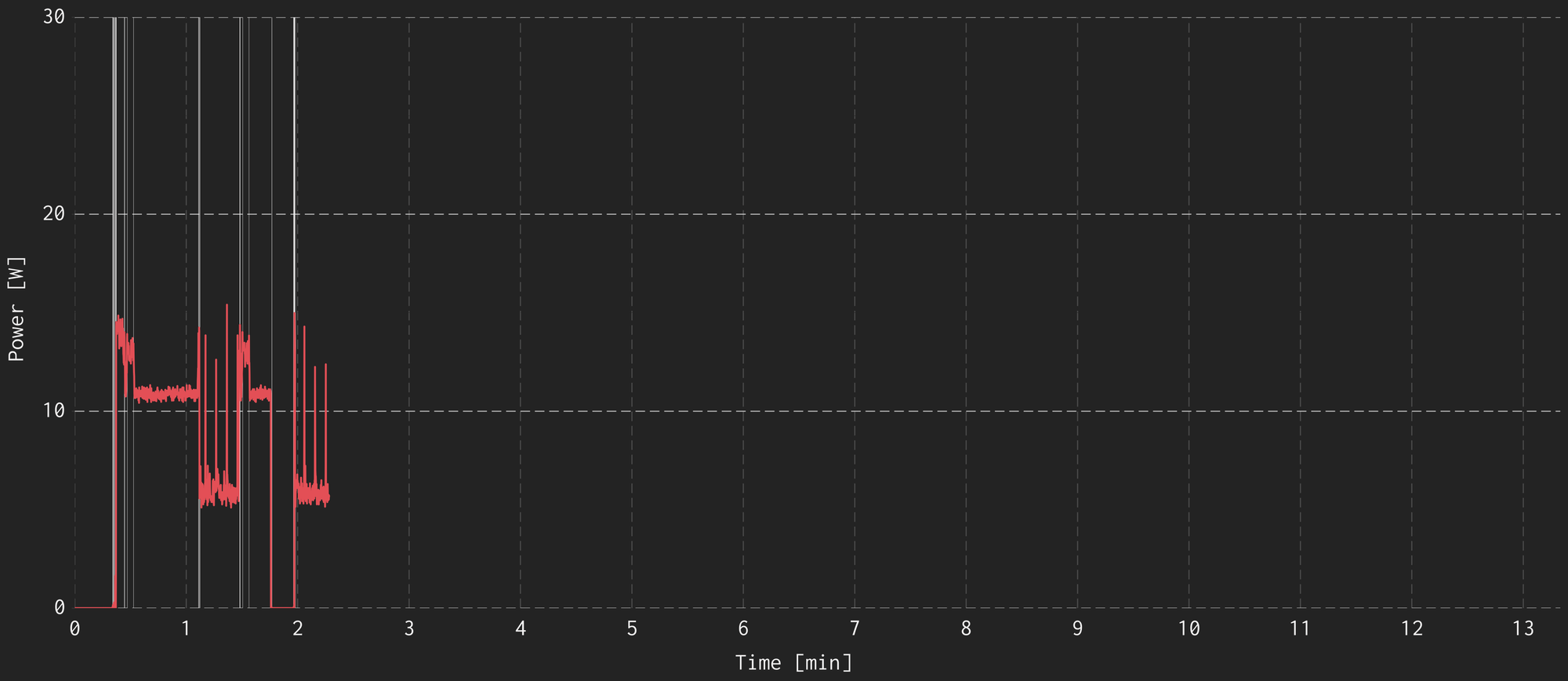
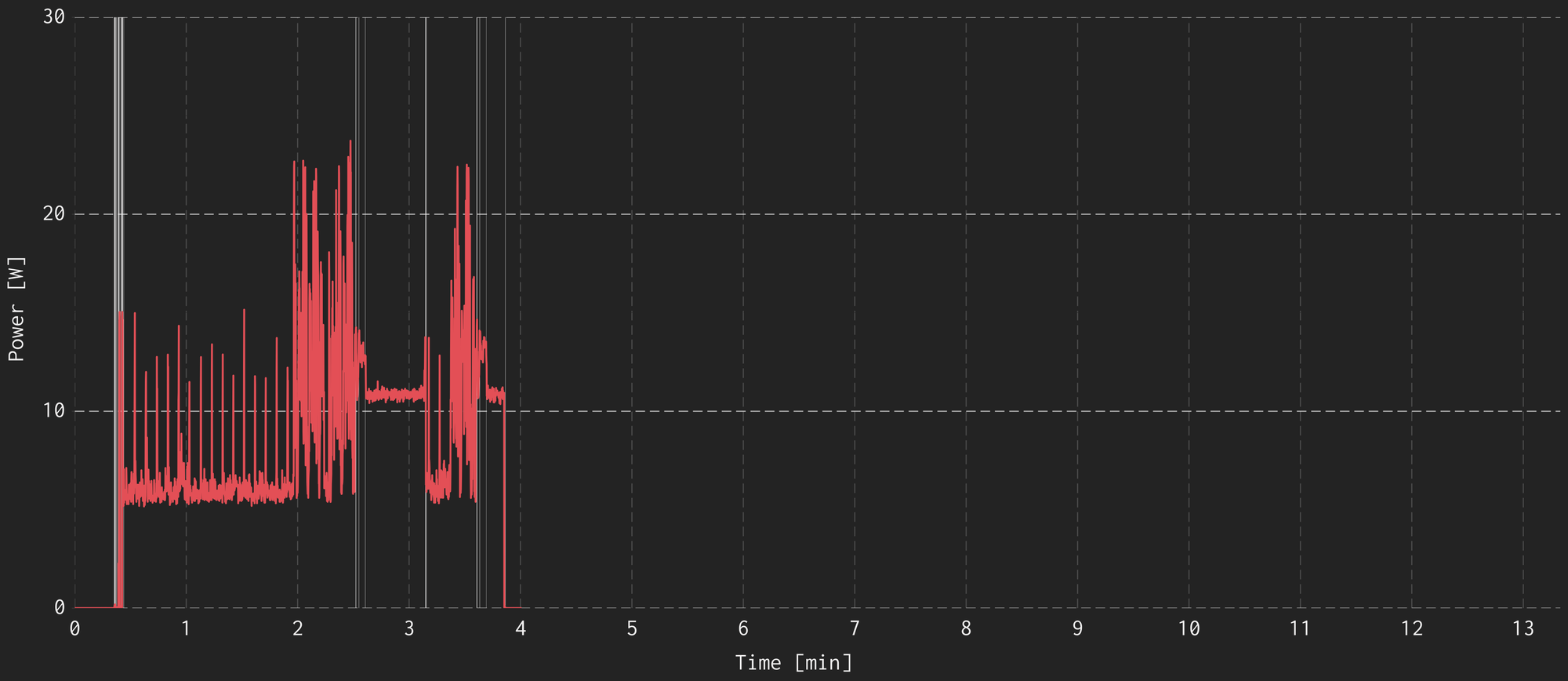
In all of these plots, the main orange/pink trace shows the power measured by the CY4500 while the vertical white lines on the plot represent times when USB-C PD messages were sent. I’ve also included some quick notes for each test about what could be read from the messages.
For example, in Test 1 we see that the Nintendo Switch AC Adapter only sends messages at the point of connection(to negotiate 20 V 3 A), and then never again. In Test 2, we see that the Switch 2 and its dock communicate a lot more. First to negotiate power, and then to negotiate display mode when the on state of the Switch 2 changes.
The tests vary in duration and I performed different actions with the Switch 2 in all cases, so they are not directly comparable. The sharp changes in measured wattage above/below 10 W are typically where the Switch 2 was turned on or off.
Test 1: Nintendo Switch 2 AC Adapter > CY4500 > Nintendo Switch 2 Dock > Switch 2
-> Nintendo Dock will draw around 15 W maximum and allow display out.
Test 2: Nintendo Switch 2 AC Adapter > Nintendo Switch 2 Dock > UGREEN USB-C Extension > CY4500 > Switch 2
-> Dock will deliver about 15 W maximum and allow display out.
Test 3: Nintendo Switch 2 AC Adapter > CY4500 > Switch 2
-> Switch 2 will still only charge at about 15 W from the Nintendo AC Adapter.
Test 4: UGREEN 100W AC Adapter > CY4500 > Switch 2
-> Switch 2 will still only charge at about 15 W from 3rd party AC adapter.
Test 5: 4k 32" Proart Monitor > CY4500 > Switch 2
-> There are many attempts at a `DR_SWAP`, always rejected. There is never anything displayed to the monitor.
Test 6: 100W UGREEN AC Adapter > CY4500 > S3 Max Dock > Switch 2
-> S3 Dock is more courteous and transparent about power draw from the AC adapter.
-> S3 Dock charges at the same speed as the Nintendo dock.
Test 7: 100W UGREEN AC Adapter > S3 Max Dock > UGREEN extension > CY4500 > Switch 2
-> Switch 2 charges, but no display output from the dock. Maybe an issue with the extension/connections.
Test 8: 100W UGREEN AC Adapter > S3 Max Dock > Other extension > CY4500 > Switch 2
-> Switch 2 charges, and provides display out from the dock.
-> Averages 15 W delivered to the Switch at maximum.
Charge Duration Tests
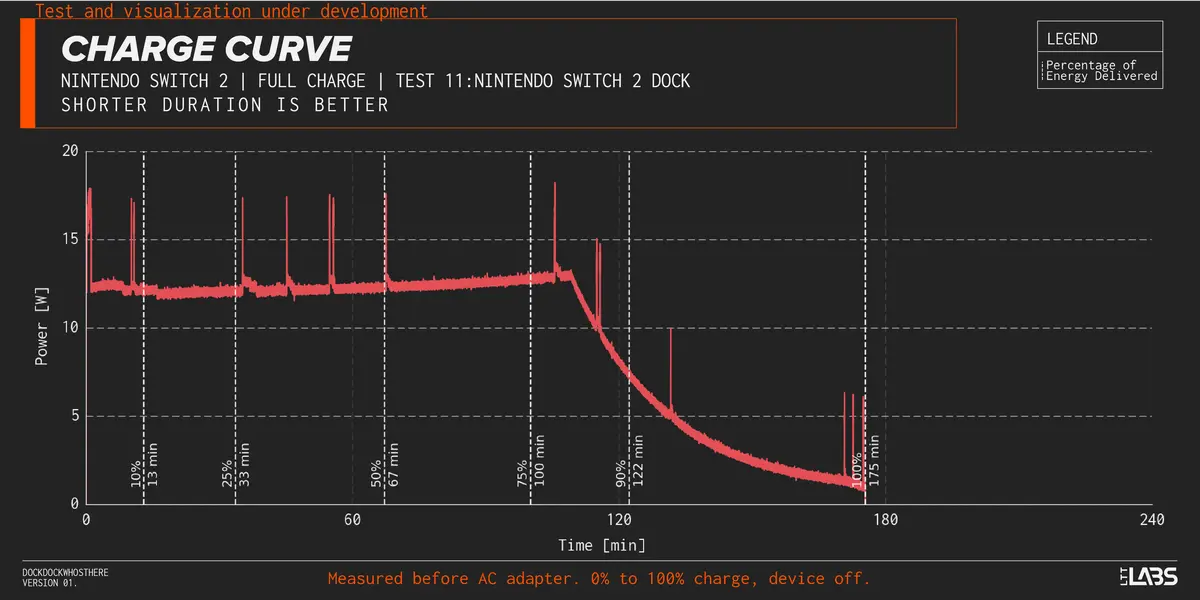
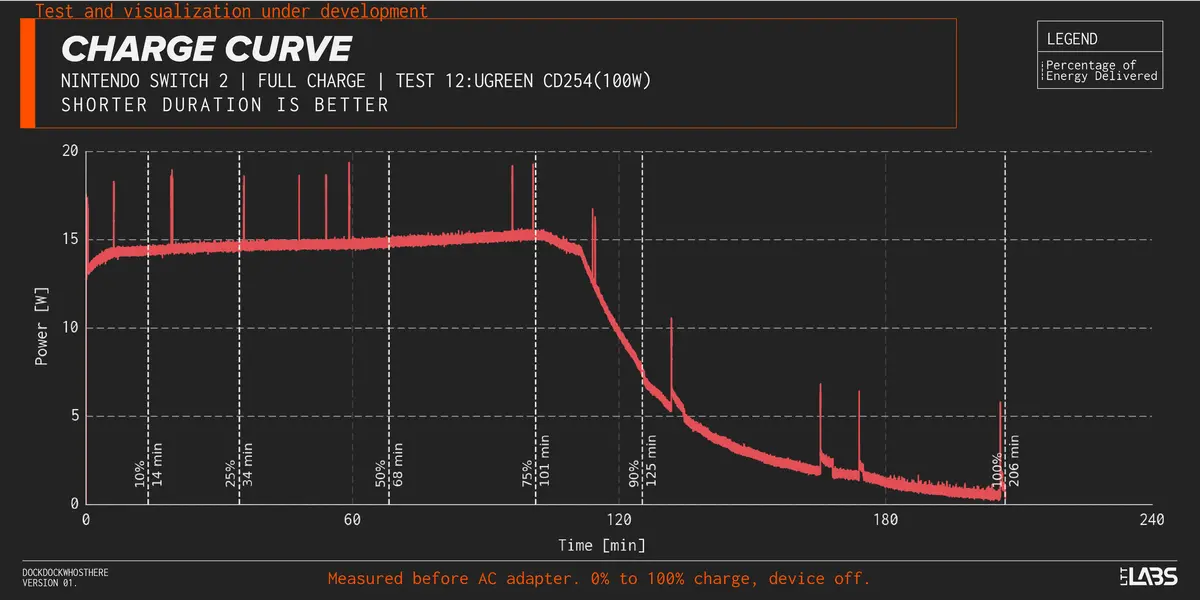
We also conducted a couple tests using our Quarch PAM, measuring the power characteristics at the wall plug. We tested charging the Switch 2 using the Nintendo dock, as well as a 3rd party UGREEN 100W AC adapter. The charge duration graphs are shown below, but the end result is that they charged at roughly the same rate.
Graph Note: I have used fixed x and y axis limits for easier comparison.
Test 11: Quarch PAM > Nintendo Switch 2 Brick > Nintendo Switch 2 Dock > Switch 2
Test 12: Quarch PAM > UGREEN 100W Brick > CY4500 > Switch 2
Conclusions? Fun Facts?
- The Nintendo Switch 2 only ever charges at a maximum of 15 W(as far as I can tell). Independent of charging method: Nintendo dock, 3rd party dock, Nintendo Switch 2 power supply, 3rd party power supply, or USB-C monitor.
- The Nintendo Switch 2 dock will request 3 A at 20 V from the point of connection, whether it is planning to use that power or not.
- This is in contrast to the Antank dock which will request additional power only when the Switch 2 is turned on and requires additional power. Arguably a better 'citizen' of the USB-C PD specification, potentially bringing your electricity bill down by a few cents
- When powered by the Nintendo Switch 2 dock or USB-C PD power adapter, the Switch 2 takes roughly two hours to charge to 90%, and roughly three hours to charge to 100%.
- This is actually a very interesting showcase of how measuring the total time to 100% charge isn’t always fully representative of the charging characteristics of the device.
- If you would like to maximize the time off of the power adapter/dock, charge to roughly 75% battery(just over 1.5 hours) and then play until it dies, repeating the cycle. This will mean that it is almost always charging near 15 W and never 'trickle charging'.
- The inability for most docks to support the Switch 2 may not be malicious from Nintendo. It might just be a poor or lazy implementation of the USB-C specification. Our monitoring of the interactions with the USB-C monitor shows that the negotiation does not even get to the point of the Vendor Defined Messages(VDM) where the dock would theoretically have to send the correct responses.